format headache

dianeP

Super Member
Registered
Joined
May 12, 2008
Messages
532
Reaction score
56
Location
Montreal, Canada
I thought I had everything set. The right font, double spaced, bla bla bla, but when I scholl down to the third page, all of a sudden the first line of every subsequent page has an additional indentation.

And if I take out the indentation of paragraphs entirely, the first line will still have one indentation.

Help me... I'm going nuts with this. It's bad enough I'm in query hell, this is just about to throw me over the edge. :(

Thanks
 
Last edited:

ComicBent

Super Member
Registered
Joined
Nov 7, 2005
Messages
347
Reaction score
28
Location
Tennessee
More information, please

Diane, we need to know more.

What program are you using?

And are you using a template?

If you are using Microsoft Word, please click in some paragraphs and look at the top of the screen to see what the paragraph style is called.

If you are using Word, it may be that you have a different paragraph style that starts on that third page.

Again, if you are using Word, click FORMAT | Styles and Formatting. This ought to open a Styles menu. Then select all the text in your document and click on "Clear Formatting" in the Styles menu that should have opened up.

You can create a special style for your work (is it a novel?) with the first line indented and double spacing in the paragraph.

Give us some more information.
 
Last edited:

dianeP

Super Member
Registered
Joined
May 12, 2008
Messages
532
Reaction score
56
Location
Montreal, Canada
Thanks ComicBent,

I tried what you suggested (it's Microsoft Word). I highlighted a particular section (with this problem) FORMAT - STYLES and I cleared the formatting. The section went to single line all to the left.

So far so good. But when I put this same section, double spaced with indentation, the same line (the one I'd had trouble with) has a double indentation.

It's really weird and I don't understand. And it's really just the first line of every page.

A template? I don't think so. I don't know how to do that.

I am such a techno dunce... seriously.

Thanks again... if you have any other suggestions, I'd sure appreciate it.

Oh... just wanted to add. I just tried again, this time the entire document and everything went to the left except the first two lines of every page.
 
Last edited:

Matera the Mad

Bartender, gimme a Linux Mint
Super Member
Registered
Joined
Jan 6, 2008
Messages
13,979
Reaction score
1,533
Location
Wisconsin's (sore) thumb
Website
www.firefromthesky.org
Do you have a button with what looks like a backwards P on it? That will show non-printing formatting characters like space, tab, and paragraph marks. That can help sort out a few things, extra tabs can play odd tricks. If no button, use Tools > Options > View -- Formatting marks, check All

Also go into View and choose Outline view. You might have accidentally set some outline levels beyond body text; that can fart things up good.

What version of Word do you have? (helps a lot with talking you through menus -- if it's 2007 half of us are lost)
 

ComicBent

Super Member
Registered
Joined
Nov 7, 2005
Messages
347
Reaction score
28
Location
Tennessee
A simple template

Okay, I whipped together a simple template for you. I think it will be easy to use. (And I think it will work all right; I had to work really fast.)

You will need Microsoft Word (I used Word 2003; the template will probably work with most versions of the program).

You will need Courier New. I hate that particular Courier, but everybody has it. You can change to another font, which I explained how to do in the template itself. (I typed out one page, like the first page of a novel, to explain basically what is going on.)

I only used two styles. (There are a few others in the template, but you can get by with just two.) I kept it very simple.

Those two are:
  1. Chapter (for your chapter numbers).
  2. Manuscript (for your double-spaced paragraphs, first line automatically indented).
It is best to put the template into the directory/folder with your other Word templates, BUT you do not have to do this. The template will work, no matter where you put it. You just have to remember where it is if you do not put it into the default folder, which is buried way, way deep in the hierarchy of files.

To use the template, just double-click it, or use OPEN. This creates an empty document based on the template. You will not destroy the original by using it.

When you come to the end of a chapter, you will want to enter a page break, so the new chapter will start on a new page. You do that with the INSERT menu on the Main Menu.

Try it out, and we will help you if you need help.

I am going to put the template on my website tonight, at this location:

Simple novel template for Word

If it does not download for you, send me an email so I can send it by attachment.

Tomorrow I will try to redo my index, so it will be listed in the downloads index itself.

 

Matera the Mad

Bartender, gimme a Linux Mint
Super Member
Registered
Joined
Jan 6, 2008
Messages
13,979
Reaction score
1,533
Location
Wisconsin's (sore) thumb
Website
www.firefromthesky.org
Give a man a fish...

The problem, as I see it right now, is that 1. copying the mis-formatted work to a new template is simply going to carry the mis-formatting over. The problem needs to be found and fixed. 2. Using styles is fine, but it is better NOT to do so when preparing a MS. A "chapter" style that is merely underlined and centered is hardly worth the effort to create. It only complicates things for someone who is already in a pickle. Also, some publishers prefer tabs.

Rant aside, there are some useful tips in the template :tongue
 

Clair Dickson

A dark core to every cloud
Super Member
Registered
Joined
Jun 28, 2008
Messages
2,557
Reaction score
571
Location
SE Michigan
Website
www.bofexler.blogspot.com
My guess-- something got wonky with the tab settings. Go to Format--> Paragraph (I know this is the command in Word2003, and I *think* you'll find the Home Ribbon, the Paragraph Group and then the little blue arrow by Paragraph to open the same menu in 2007.) Oh, yeah, select ALL affected (or just all) text before doing so.

The middle of the Format Paragraph dialogue box has the settings for indenting. Get rid of any settings. No hanging indent, no first line indent, nothing.

Also, check the ruler at the top of your document. The ruler is along the top edge and looks kind of like a ruler you'd use for measuring. (View--> Page Layout, View--> Ruler, if not turned on.) You will see little blue triangles-- they may be lined up. Highlight the text and set the little blue arrows both to the edge of your text. If there are any little black L or upside-down T shapes, click to select and drag them down off the ruler. This should get rid of any funked up indenting.

Word likes to be helpful sometimes by setting your document to automatically indent each paragraph. Or your indent got screwed up another way (and yes, it can be screwed up for just a couple paragraphs, but not the whole doc.)
 

dianeP

Super Member
Registered
Joined
May 12, 2008
Messages
532
Reaction score
56
Location
Montreal, Canada
Also go into View and choose Outline view. You might have accidentally set some outline levels beyond body text; that can fart things up good.

What version of Word do you have? (helps a lot with talking you through menus -- if it's 2007 half of us are lost)

Thanks, I'll take a look.

... fart things up good. If nothing else, at least you made me laugh this morning.

... version of Word. If you're lost with 2007, will you be more lost if it's older than that. I'm not sure (and I'm almost afraid to say it) but I think it's 2003. No... that can't be. I bought this thing in 2006. Anyway, where would I find the year? I've clicked on a word document and properties, but see nothing.

Thanks again
 

dianeP

Super Member
Registered
Joined
May 12, 2008
Messages
532
Reaction score
56
Location
Montreal, Canada
Matera

I did the backwards P thing. All these backward Ps appeared on every return... okay.

But, on the first line of every page (my problem area) there is a dark P on the last line of the previous page and a faded out P on the first line of the next page.
I can place my cursor next to the dark one and highlight it, but I can't with the grey one.

It's funny though, how this grey P appears in the first three pages without pushing my text over, but later it does.

Does all this make sense, and what do I do now?

Thanks
 

Clair Dickson

A dark core to every cloud
Super Member
Registered
Joined
Jun 28, 2008
Messages
2,557
Reaction score
571
Location
SE Michigan
Website
www.bofexler.blogspot.com
dianeP-- Word2007 is a radical change in MSWord. Word 95-2003 are fairly similar in most aspects, esp. menu commands. Not too many people have Word2007 and thus can't help with the whole new and vastly different commands.

To find out what version of Word you have, you can open Word and go to Help--> About Microsoft Word. The top line of that box will say what you have. My desktop has MS Word 2003.
 

Clair Dickson

A dark core to every cloud
Super Member
Registered
Joined
Jun 28, 2008
Messages
2,557
Reaction score
571
Location
SE Michigan
Website
www.bofexler.blogspot.com
diane-- check your tabs. See my post above.

If your doc is set to have a Special Tab for the First Line Tab, then it will automatically indent the first line of each page (including an extra indent). Does that sound like your problem?
 

dianeP

Super Member
Registered
Joined
May 12, 2008
Messages
532
Reaction score
56
Location
Montreal, Canada
Thanks Clair.
I found that I have microsoft word 2002.

And yes, that sounds exactly like my problem. I went to check the tabs and cleared all, but the indents remained. I still have that grey P in the indent at the beginning of the page.
 

dianeP

Super Member
Registered
Joined
May 12, 2008
Messages
532
Reaction score
56
Location
Montreal, Canada
Hey everyone...
What is widow/orphan control? And does this have anything to do with my problem?

Clair, I went to format - paragraph, but can't find Home Ribbon.

I also checked that ruler on top. There's that hourglass thing and it is set to the left margin and remains so as I drop my cursor down from line to line.

I'm beginning to think this particular document is a lost cause. I would just like to avoid having it happen again.

Thanks again for all the suggestions.
 

Clair Dickson

A dark core to every cloud
Super Member
Registered
Joined
Jun 28, 2008
Messages
2,557
Reaction score
571
Location
SE Michigan
Website
www.bofexler.blogspot.com
diane-- if you look again, the Home Ribbon is Word2007 thing. =) In Word2002, you want the Format Menu.

First, select your whole document (Press Ctrl+A)
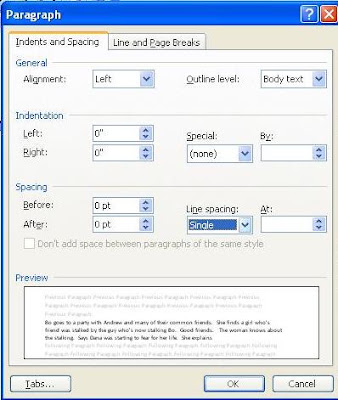
Then, go to Format--> Paragraph. You'll see a dialogue box like the one below.
tabs%20and%20indents.JPG


Does yours look like this? Check Outline level and Special Indents.

I'm not giving up! =)
 

dianeP

Super Member
Registered
Joined
May 12, 2008
Messages
532
Reaction score
56
Location
Montreal, Canada
Hi Clair,
Yeah, it looks exactly like that. And with those exact same settings.

Thanks for not giving up... I think I almost have. :))
 

dianeP

Super Member
Registered
Joined
May 12, 2008
Messages
532
Reaction score
56
Location
Montreal, Canada
Thanks to everyone for all the suggestions and advice.

I don't know how she did it, but Claire was able to find an anchor in my headers. This anchor was what was creating the mysterious spaces.

Thanks Claire :)